I've been working on a way to put film visuals behind a DJ set. Video Sync takes information from Rekordbox and a MIDI controller, then uses it to cut and mix video in time with the music.
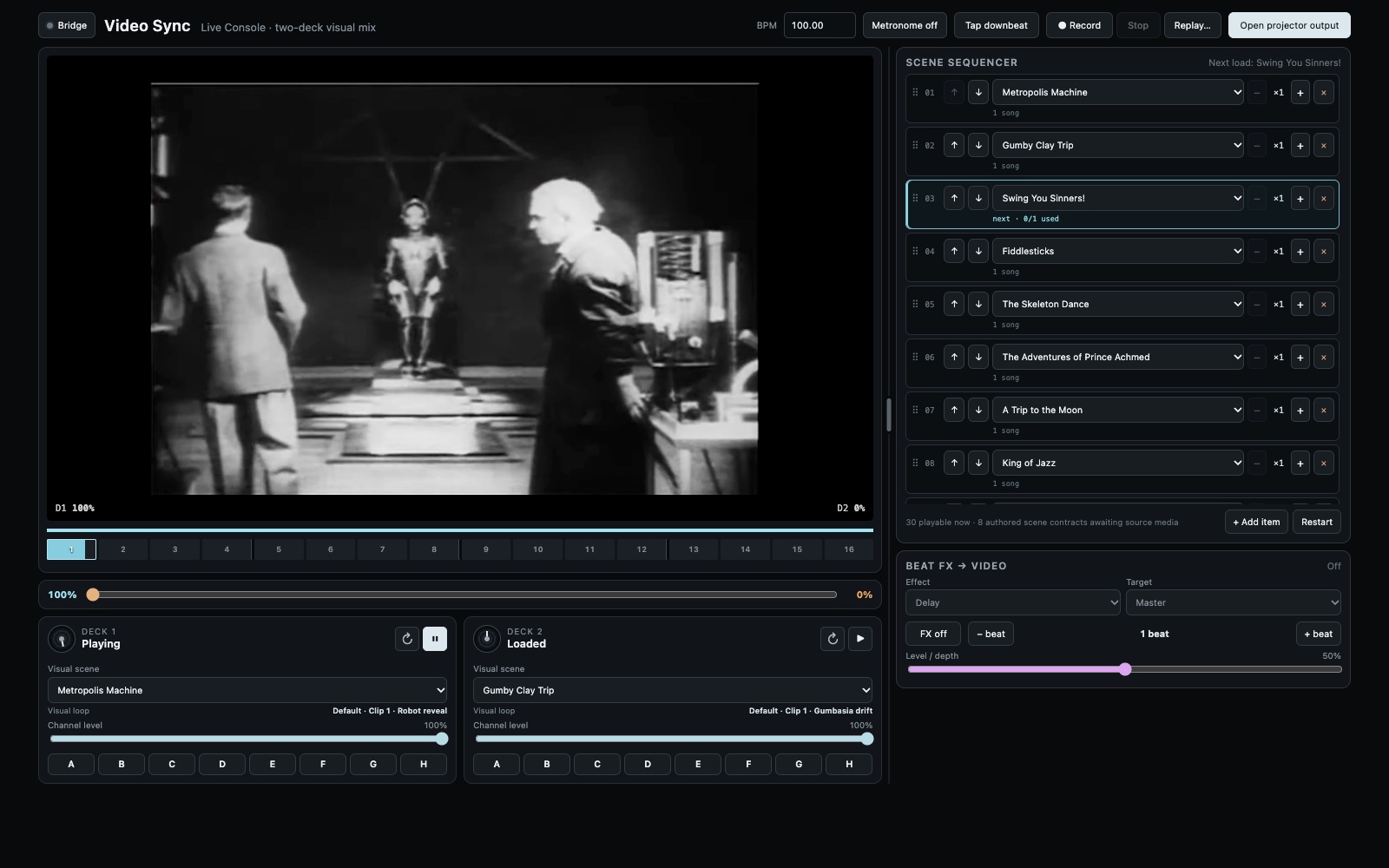
Each deck has its own video playback. Channel levels and the crossfader control the visual mix, while Hot Cues and Beat FX can change the loops and effects. A queue of scenes keeps the visuals moving as tracks change.
The graphics run in a browser, with a separate window for the projector. A small native bridge handles MIDI and Ableton Link, while a local relay carries the performance data. Scenes are reusable arrangements of clips, so they don't have to be built again for every song.
It's still an experimental proof of concept. The current hardware-tested setup is on macOS with Rekordbox and a DDJ-GRV6. Other controllers need their own mappings, and Windows deck-state integration is still to do.
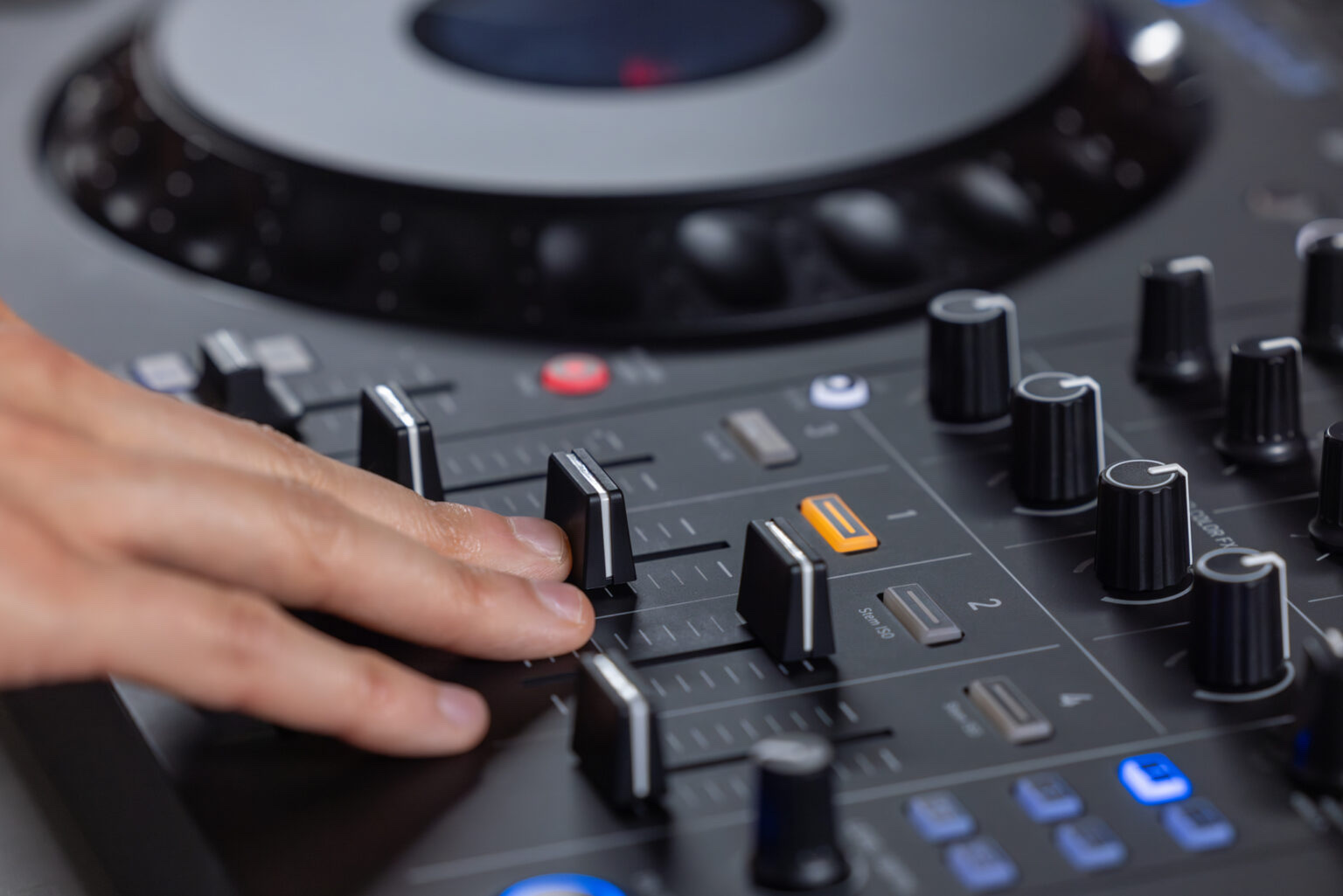
From footage to a set
1. Sources & Clips
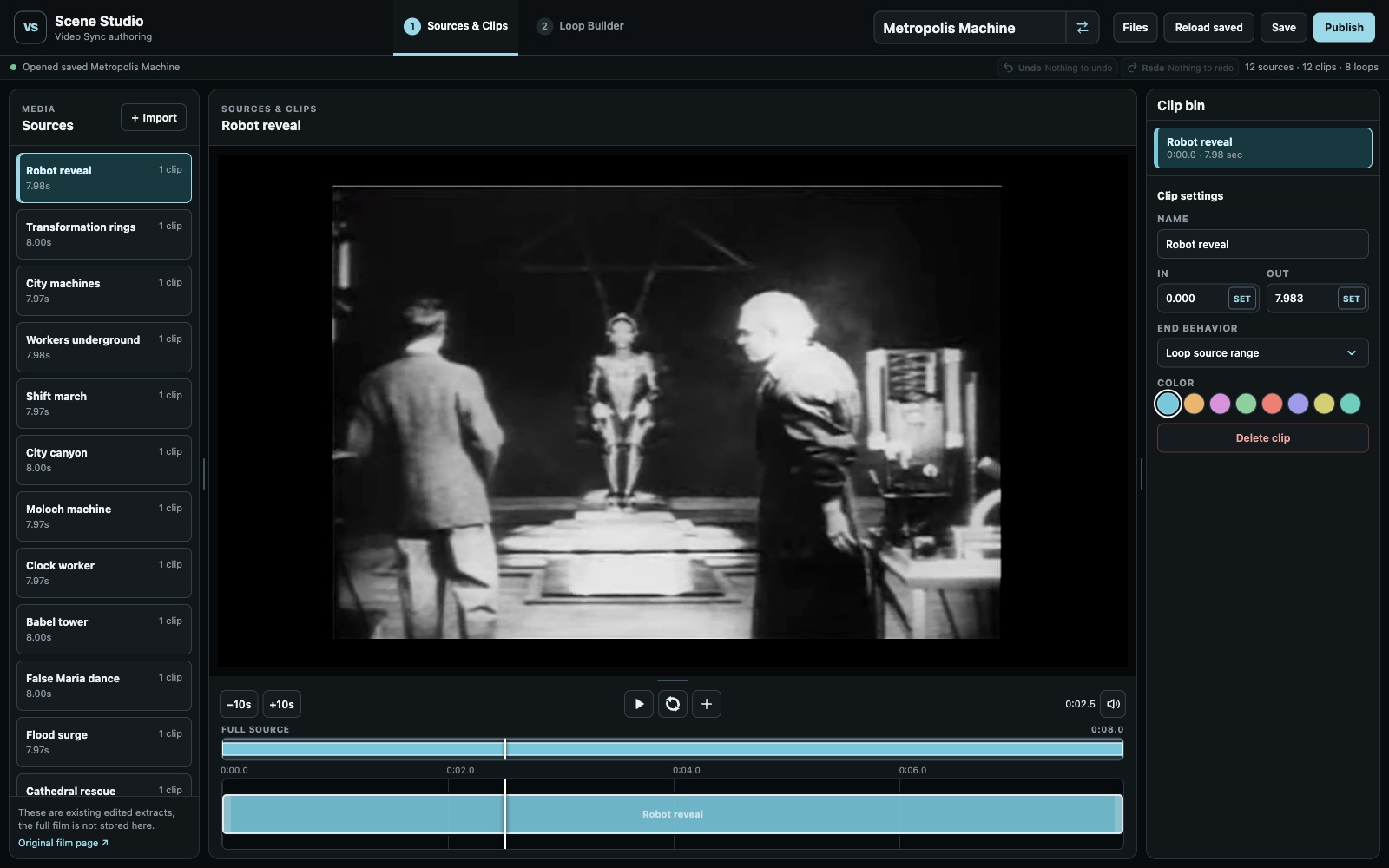
I start in Scene Studio by opening a scene or importing a local video. In the Sources & Clips tab, I find the bits I want, mark their in and out points, then name and color the clips. These are reusable ranges in the source footage, rather than separate copies of the film.
2. Loop Builder
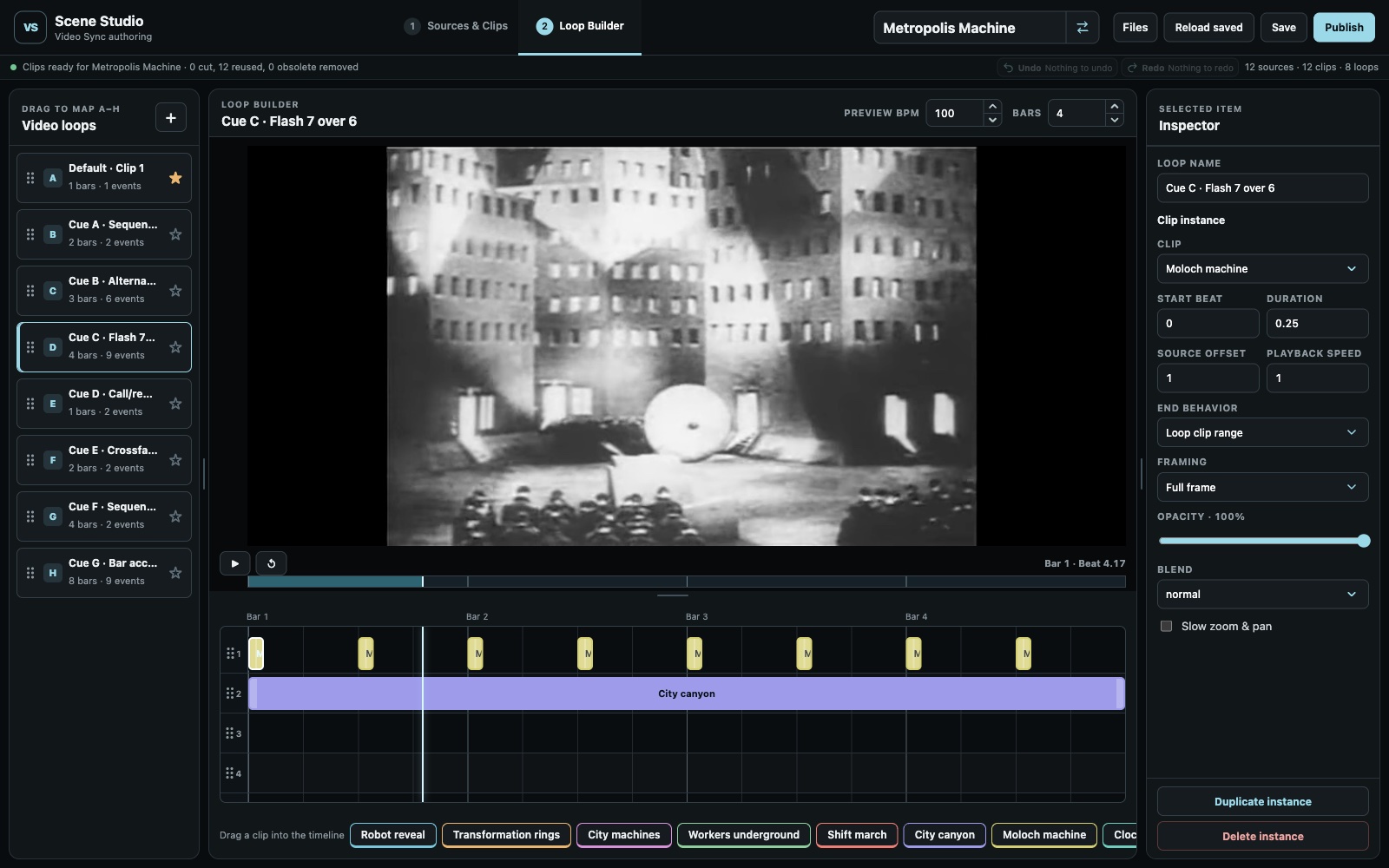
Next I drag those clips onto a timeline measured in bars and beats. I can arrange cuts, layer clips and adjust their speed, framing and opacity, then play the loop at a chosen BPM. The first eight loops map to Hot Cues A–H in list order; the star picks the scene's default loop.
3. Try it in the simulator
Save keeps the editable project; Publish makes it available to the Live Console. After publishing, refresh the console, load a deck, then choose the scene from its Visual scene menu. Without any DJ hardware attached, the on-screen controls act as a simulator: set the BPM, press Play, try the Hot Cues and move the channel levels and crossfader to check the mix.
4. Put it on the projector
Connect the projector as an extended display. In the Live Console, click Open projector output, move the new window onto the projector and click Full screen. The controls stay on the laptop while the projector shows the visuals. Refresh an already-open output window after publishing a revised scene.
For a live set, connect the DDJ-GRV6, open Rekordbox and run the native bridge alongside the local server. On macOS, the Node process also needs Accessibility permission to read the visible decks. The Bridge drawer in the console shows whether live input and the local media are ready before playing.