I’m in the process of creating a “Robot Command Center” in my home. Basically my goal is to have Arduino devices sending sensor data to a central server and receiving commands from this server on what to do next.
My previous post described how to use a wi-fi chip called the RN-XV to get an arduino talk to a PHP web site. The problem with this HTTP over TCP based method was that all the connecting and disconnecting was slowing everything down. The best it could do was just one exchange of data per second. Luckily the RN-XV Wifly module has a UDP mode which seems better suited for fast communication. UDP (an alternative to TCP) forgoes the formalities of handshaking and just starts yelling data over a port.
The following 4 commands are needed in the Arduino sketch to configure UDP on your RN-XV. These commands enable UDP mode, set the ip of the host computer, and set the sending and receiving ports. You’ll find them used in my Arduino code later in this post.
set ip proto 1
set ip host 192.168.1.XXX
set ip remote 3000
set ip local 4000
Now the question of what to use for the central server. My first attempt was to use C++ and Cinder which I’ve been exploring lately. Cinder can easily communicate using OSC (Open Sound Control) data over a UDP connection. However I had some trouble generating the OSC messages on the Arduino. I’m shelving this Arduino + WiFly + OSC + Cinder project for another day.
My next attempt was to use Python, which has great built-in networking functionality. First, tried installing Python on Windows 7, but after some early hurdles and research it seemed clear that it would be easier to run Python on an Ubuntu instance using VirtualBox.
Psychocats has some great instructions for setting up VirtualBox + Ubuntu.
1. Download Ubuntu 2. Get VirtualBox + Ubuntu 3. Install Ubuntu 4. Select Bridged mode in VirtualBox settingsAnd there you have it, a clean new Linux build with it’s own IP Address.
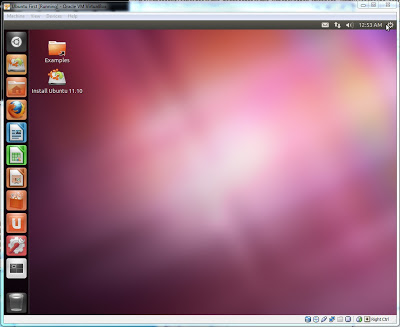
Next I created a Shared Folder so I can edit the code on the host computer and have it copy right over to the Ubuntu instance.
1. Go to Devices->Install Guest Additions – this is required first
2. Go to Devices->Shared Folders – make a shared folder
3. Ctrl-Alt-T to open Terminal
4. Type sudo mount -t vboxsf SHARE_FOLDER ~/Share
(here substitute “SHARE_FOLDER” for what you created in step 2 and “~/Share” for whatever location you want that share to exist in Ubuntu)
Back on the host machine, I made a quick python script called test.py containing 1 line of code:
print "hi"and placed it in the shared folder. Now you can run it by going back to Ubuntu Terminal, navigating to where test.py lives, and typing
python test.py
You should see “hi” show up as the output.
Now use the following code on the Arduino (once you have hooked up the RN-XV as I’ve described in this post)
#include "RNXV.h"

int loopCount;
RNXV rnxv = RNXV();

void setup() {

  Serial.begin(9600);
  Serial1.begin(9600);
  Serial.println("setup begin");

  rnxv.setUart(&Serial1);
  Serial.println("uart set");

  rnxv.connect("your_ssid","your_passphrase");

  rnxv.sendCommand("set ip proto 1", "AOK");
  rnxv.sendCommand("set ip host 192.168.1.7", "AOK");
  rnxv.sendCommand("set ip remote 3000", "AOK");
  rnxv.sendCommand("set ip local 4000", "AOK");
  rnxv.sendCommand("save", "AOK");
  rnxv.sendCommand("reboot", "READY");

  rnxv.sendCommand("join", "AOK");

  loopCount = 0;
  Serial.println("setup end");
}

void loop()
{
  sendData();
  receiveData();
}

void sendData()
{
  loopCount++;
  Serial1.print(loopCount);
  Serial1.print(“here is a string of data being sent back and forth”);
  delay(200);
}

void receiveData()
{
  while (Serial1.available() > 0) {
    Serial.write(Serial1.read());
  }
}
I whipped up a simple library to work with the RN-XV.
Here is the header file RNXV.h:
#ifndef RNXV_h
#define RNXV_h

#include "Arduino.h"

class RNXV
{
public:
  RNXV();
  void setUart(Stream* uart);
  void print(char* str);
  void println(char* str);
  void enterCommandMode();
  void exitCommandMode();
  void sendCommand(char* cmd, char* response);
  bool connect(char* ssid, char* phrase);
  bool awaitResponse(const char* toMatch, unsigned int timeOut);
  bool awaitResponse(const char* toMatch);

private:
  Stream* _uart;
};
#endif
And here is the corresponding RNXV.cpp. Remember that both these files go in a folder called “RNXV” which is placed in your Arduino libraries directory.
#include "Arduino.h"
#include "RNXV.h"

RNXV::RNXV()
{
}

void RNXV::setUart(Stream* uart)
{
  _uart = uart;

  enterCommandMode();
  println("set comm idle 0");
  awaitResponse("AOK");
  println("set ip proto 2");
  awaitResponse("AOK");
}

void RNXV::print(char* str)
{
  _uart->print(str);
  delay(250);
}

void RNXV::println(char* str)
{
  _uart->print(str);
  _uart->print("\r");
  delay(250);
}

void RNXV::enterCommandMode()
{
  print("$$$");
  awaitResponse("CMD");
}

void RNXV::exitCommandMode()
{
  print("exit\r");
  awaitResponse("EXIT");
}

void RNXV::sendCommand(char* cmd, char* response)
{
  enterCommandMode();
  print(cmd);
  print("\r");
  awaitResponse(response);
  exitCommandMode();
}

bool RNXV::connect(char* ssid, char* phrase)
{
  enterCommandMode();
  print("set wlan phrase "); println(phrase);
  awaitResponse("AOK");

  print("set wlan ssid "); println(ssid);
  awaitResponse("AOK");

  println("save");
  awaitResponse("AOK");

  println("reboot");
  awaitResponse("READY");

  delay(2000);
  println("join");
  awaitResponse("Associated!");

  exitCommandMode();
  return true;
}

bool RNXV::awaitResponse(const char* toMatch){
  awaitResponse(toMatch, 1000);
}

bool RNXV::awaitResponse(const char* toMatch, unsigned int timeOut = 1000) {
  int byteRead;
  unsigned long timeOutTarget;

  for (unsigned int offset = 0; offset < strlen(toMatch); offset++) {
    timeOutTarget = millis() + timeOut;

    while (!_uart->available()) {
      if (timeOut > 0) {
        if (millis() > timeOutTarget) {
          return false;
        }
      }
      delay(1);
    }

    byteRead = _uart->read();
    delay(10);
    if (byteRead != toMatch[offset]) {
      offset = 0;
      if (byteRead != toMatch[offset]) {
        offset = -1;
      }
      continue;
    }
  }

  return true;
}
And use the following basic Python code on Ubuntu
import socket
import time

UDP_IP="192.168.1.7"
UDP_PORT=3000

sock = socket.socket( socket.AF_INET, # Internet
                      socket.SOCK_DGRAM ) # UDP
sock.bind( (UDP_IP,UDP_PORT) )

while True:
    data, addr = sock.recvfrom( 1024 )
    print "received message:", data
    if len(data) > 0:
        sock.sendto( data + "\n", 0, ('192.168.1.5', 4000) )
        time.sleep( .2 )
As you may have guessed, in my case 192.168.1.7 is the IP of the Ubuntu instance (which listens on port 3000) and 192.168.1.5 is the IP of the Arduino’s WiFly module (which listens on port 4000). Replace these to suit your local network.
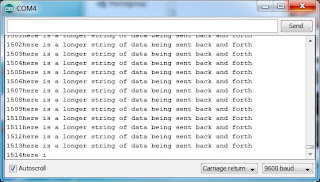
I’m sure my code could use numerous improvements but this is a good start to having your Arduino device talk to a Python server over your wi-fi network. Here is the output you should see on your Arduino serial terminal:
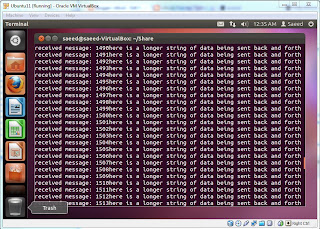
And here is the corresponding output that the Python program produces:
As an aside, try downloading an app called TouchOSC on your Android or iOS phone or tablet. Since OSC is transmitted over UDP as well, you can easily configure TouchOSC to point to your Ubuntu’s IP and listening port, and you get instant communication!