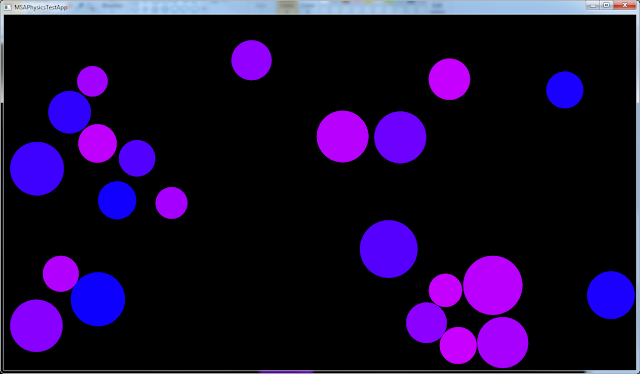
MSAPhysics is a simple and light-weight physics engine for Cinder or OpenFrameworks created by Memo Aktens. I downloaded it from his git repository where he hosts a bunch of useful C++ libraries and decided to try it in conjunction with Cinder in VisualStudio 2010. Unfortunately the VS2010 sample apps that came with it, didn’t work right away. The MSAPhysics lib hasn’t been kept up to date in a couple of years. For this reason many prefer to go with Box2D for a better supported, fully featured, and robust physics engine. MSAPhysics is a great alternative if you want to do something really quick in a 2D or 3D world. Here are the simple steps for first getting MSAPhysics samples working and then to add the MSAPhysics library to a new project. This requires setting up Cinder as described here, as well as VisualStudio 2010.
Get msaPhysicsBasic Cinder Sample App Working
The sample app is very useful for learning how to use MSAPhysics and see it’s potential.
1. Open the vc10 solution msaPhysicsBasic
2. Fix the following properties. Adjust the paths to point to your cinder directories… C/C++ –> General –> Additional Include Directories Linker –> General –> Additional Library Directories (added extra ../ in my case) 3. Copy all the .h and .cpp files found in the following mslibs src folders MSAPhysics MSACore MSAObjCPointer Paste into the sample projects include folder 4. Now right-click Sln –> Header Files and add all the files you just copied. Looks like this now: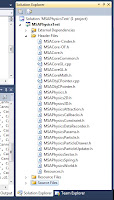 5. In MSACore.h, uncomment this line: #define MSA_HOST_CINDER
6. Make sure both of the following are included in your main app:
#include “MSAPhysics.h”
#include “MSAPhysics3D.h”
7. Make following replacements in the main app:
Physics::World3D physics;
Physics::Particle3D mouseNode;
//Physics::World physics;
//Physics::Particle mouseNode;
Also change all occurrences of Particle, Spring, and more to Particle3D, Spring3D, etc
9. Change anywhere you have something like
a->getX()
to
a->getPosition().x
10. Change loadResource() call to loadAsset() and put ball.png into a folder called “assets” in sample app folder
5. In MSACore.h, uncomment this line: #define MSA_HOST_CINDER
6. Make sure both of the following are included in your main app:
#include “MSAPhysics.h”
#include “MSAPhysics3D.h”
7. Make following replacements in the main app:
Physics::World3D physics;
Physics::Particle3D mouseNode;
//Physics::World physics;
//Physics::Particle mouseNode;
Also change all occurrences of Particle, Spring, and more to Particle3D, Spring3D, etc
9. Change anywhere you have something like
a->getX()
to
a->getPosition().x
10. Change loadResource() call to loadAsset() and put ball.png into a folder called “assets” in sample app folder
 Get MSAPhysics into a new Cinder App
1. Create Basic App in TinderBox (which comes with the windows distribution of Cinder 0.84)
2. Copy all the .h and .cpp files found in the following mslibs src folders
MSAPhysics
MSACore
MSAObjCPointer
Paste into the sample projects include folder
Get MSAPhysics into a new Cinder App
1. Create Basic App in TinderBox (which comes with the windows distribution of Cinder 0.84)
2. Copy all the .h and .cpp files found in the following mslibs src folders
MSAPhysics
MSACore
MSAObjCPointer
Paste into the sample projects include folder
3. Add the files you just copied under Sln -> Header Files (see screenshot above).
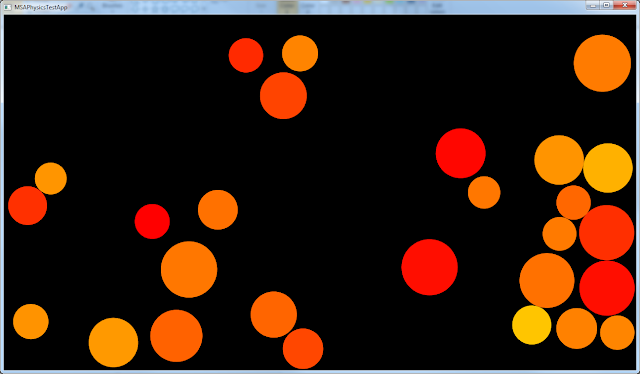
4. In MSACore.h, uncomment this line: #define MSA_HOST_CINDER 5. Add this line to the top of your main cpp file: #include “MSAPhysics2D.h” Optionally add this line: using namespace MSA; 6. Code A Quick Test App I Created Here is some source code from my own experiments with MSAPhysics. I wanted to be able to abstract out a particle system that uses MSAPhysics. I define the Physics::World2D in the main app. Then, when initializing the ParticleController, I pass in a reference to World2D. Then when creating each Particle, the ParticleController also creates a Physics::Particle2D, and passes it’s reference to its corresponding Particle instance to store. This way a Particle can draw itself using data from the physics world, as well as it’s own member data such as a color. Here is the end result